
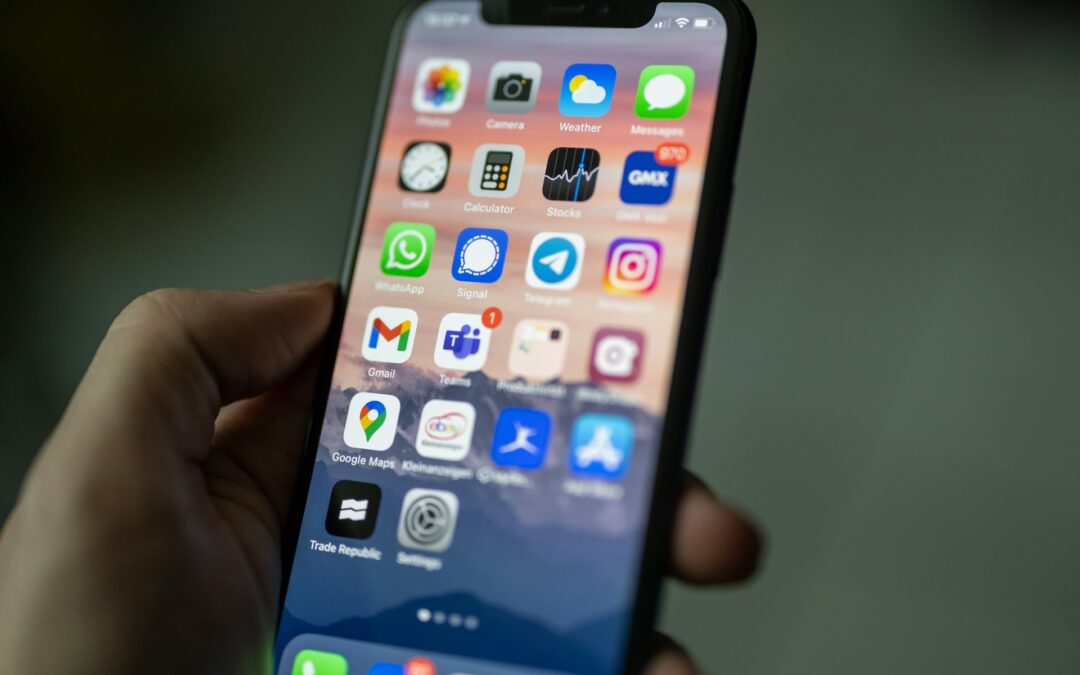
Apps on an iPhone
Over time, your iPhone can fill up with apps you no longer use, quietly consuming storage space and sometimes holding onto personal data. Simply removing an app from the Home Screen doesn’t always mean it’s gone forever. If you want to completely remove apps including their data and traces it’s important to follow the right steps. Learning how to delete apps on an iPhone permanently helps you free up storage, protect your privacy, and keep your device running efficiently. This guide walks you through the most effective ways to permanently remove apps from your iPhone.
How to Delete Apps on iPhone Permanently
Permanently deleting apps means removing the app itself, clearing its stored data, and ensuring it’s no longer connected to your account. Whether it’s a downloaded app or a built-in Apple app, these methods will help you erase it completely.
1. Permanently Delete Apps from the Home Screen
This is the fastest way to remove most apps from your iPhone.
Steps:
Locate the app on your Home Screen
Tap and hold the app icon until the menu appears
Select Remove App
Tap Delete App
Confirm by tapping Delete
This removes the app and its local data from your device.
2. Permanently Delete Apps Using the App Library (Ios 14 and Later)
Apps hidden from the Home Screen may still exist in the App Library.
Steps:
Swipe left until you reach the App Library
Use the search bar or browse categories to find the app
Tap and hold the app icon
Tap Delete App → Confirm
This ensures the app is fully removed, even if it wasn’t visible on your Home Screen.
3. Delete Apps and Their Data via iphone Storage
This method is ideal for confirming that an app and its stored data are completely removed.
Steps:
Go to Settings → General → iPhone Storage
Scroll and select the app you want to remove
Tap Delete App (not “Offload App”)
Confirm deletion
⚠️ Important: Avoid choosing Offload App, as it keeps the app’s data on your device.
4. Permanently Remove Built-In Apple Apps
Some Apple apps can be deleted if you don’t use them.
Steps:
Tap and hold the built-in app
Select Remove App
Tap Delete App
Confirm
Deleting built-in apps removes them from your device, though you can reinstall them later from the App Store if needed.
5. Delete Apps Using Finder or iTunes (Computer Method)
Using a computer can help manage and sync app data more thoroughly.
Steps:
Connect your iPhone to a Mac or PC
Open Finder (macOS Catalina or later) or iTunes (older versions)
Select your iPhone
Manage or remove apps from the device
This is useful when apps won’t delete directly from the phone.
6. Remove App Data from iCloud for Permanent Deletion
Even after deleting an app, some data may remain backed up in iCloud.
Steps:
Go to Settings → [Your Name] → iCloud
Tap Manage Storage
Select the app
Delete its stored iCloud data
This ensures the app’s data is completely erased and won’t return when reinstalling.
7. Can’t Permanently Delete an App? Try This
If an app refuses to delete, try these fixes:
Restart your iPhone to clear temporary issues
Check Screen Time Restrictions:
Settings → Screen Time → Content & Privacy Restrictions
iTunes & App Store Purchases → Deleting Apps → Allow
Update iOS to the latest version
Delete via iPhone Storage instead of the Home Screen
8. What Happens When You Permanently Delete an App
The app and its local data are removed from your iPhone
Associated iCloud data is deleted if you remove it manually
Purchased apps remain in your App Store history
You can reinstall apps later without paying again
How Permanent App Deletion Protects Your Privacy
Many apps store personal information such as login credentials, usage data, and preferences. Permanently deleting apps, including their iCloud data, reduces the risk of old information being accessed later. Before uninstalling, it’s also a good idea to log out of accounts within the app and revoke permissions where possible. This extra step ensures your personal data stays secure even after the app is gone.
Final Thoughts
Knowing how to delete apps on an iPhone permanently goes beyond clearing clutter; it helps protect your privacy and keeps your device optimized. By using the Home Screen, App Library, iPhone Storage, and iCloud settings, you can ensure unwanted apps and their data are fully erased. Regularly reviewing and permanently deleting unused apps keeps your iPhone faster, cleaner, and more secure for everyday use.
Photo by Dimitri Karastelev on Unsplash






Trackbacks/Pingbacks