
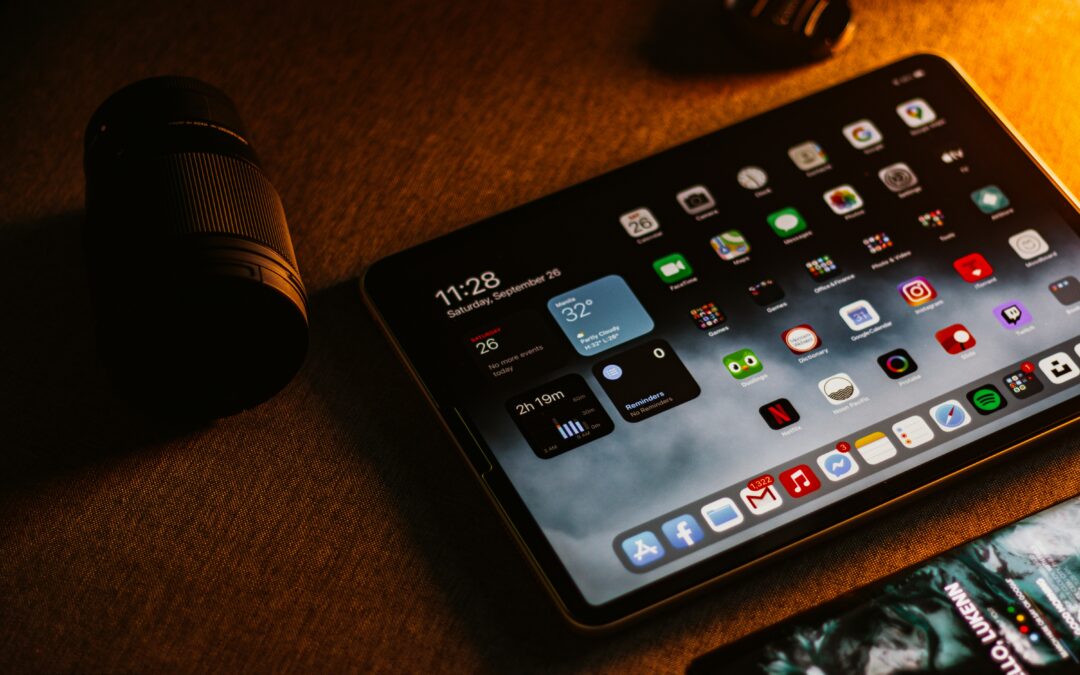
Keeping your iPad organized helps it run smoothly and makes it easier to use. Over time, many apps get downloaded for short-term use, like games, shopping tools, or social media, and are then forgotten. These unused apps take up storage space and clutter the Home Screen. Learning how to delete apps on iPad is an easy way to free up space and keep your device performing well.
Large apps, games, and streaming services use a lot of memory. When storage is low, your iPad can slow down, show warnings, or have trouble updating. Removing apps you don’t need prevents these problems and keeps your device running efficiently. Apple made iPadOS easy to use, so even beginners can delete apps without technical knowledge.
Whether it’s old games, unused apps, or preparing for an update, knowing how to delete apps on iPad gives you control over storage. By following simple steps, you can safely remove apps, free up space, and keep your iPad fast, clean, and organized.
Step 1: Locate the App You Want to Delete
The first step is to find the app you want to delete. Unlock your iPad and go to the Home Screen, where all your apps are shown. Swipe left or right to look through the pages until you see the app. If the app is inside a folder, tap the folder to open it.
If you have many apps, you can use Search instead. Swipe down on the Home Screen, type the app’s name, and it will appear right away. Before deleting, make sure you’ve chosen the correct app, especially if it contains important data. Deleting an app removes it and its data from your iPad unless it’s backed up to iCloud. Once you’re sure you no longer need the app, you can safely delete it.
Step 2: Tap and Hold the App Icon
Once you find the app, press and hold its icon on the Home Screen. This step is important for how to delete apps on iPad because it opens the options used to manage apps. After a few seconds, a small menu will appear, or the app icons will start to jiggle, depending on your iPadOS version. When the menu appears, tap Remove App to continue.
If the icons begin shaking instead, look for a minus (–) or delete symbol near the app icon. This symbol means the app can be removed. Understanding this step helps prevent accidental deletions and ensures you select the correct app when learning how to delete apps on iPad. If you don’t see the remove option, the app may be a built-in Apple app, or app deletion may be limited by Screen Time settings. Once the remove option appears, you can move on to the final step.
Step 3: Confirm and Delete the App
Deleting unused apps from your iPad is a simple but effective way to keep your device organized and running smoothly. Over time, apps you no longer use can take up valuable storage space and make your Home Screen feel cluttered. By learning how to remove these apps, you can free up memory, improve performance, and make it easier to find the apps you actually need. Apple has designed iPadOS to make app deletion quick and user-friendly, even for beginners. Whether you want to clear space for photos, install new apps, or prepare your iPad for a software update, removing unwanted apps helps you stay in control of your device. The process only takes a few seconds and can be done directly from the Home Screen or through Settings. Making it a habit to delete unused apps ensures your iPad stays fast, organized, and enjoyable to use every day.
Conclusion
Knowing how to delete apps on iPad is a simple yet essential skill for keeping your device organized and running smoothly. Removing unused or unwanted apps helps free up storage space, reduces clutter on the Home Screen, and can even improve overall performance. Whether you delete apps directly from the Home Screen or through the Settings menu, the process is quick and easy for users of all experience levels. Regularly reviewing and cleaning up your apps also makes it easier to find the ones you actually use and keeps your iPad ready for updates and new downloads. By following the steps in this guide, you can confidently manage your apps and maintain a clean, efficient, and well-organized iPad for everyday use.
Photo by Lukenn Sabellano on Unsplash