
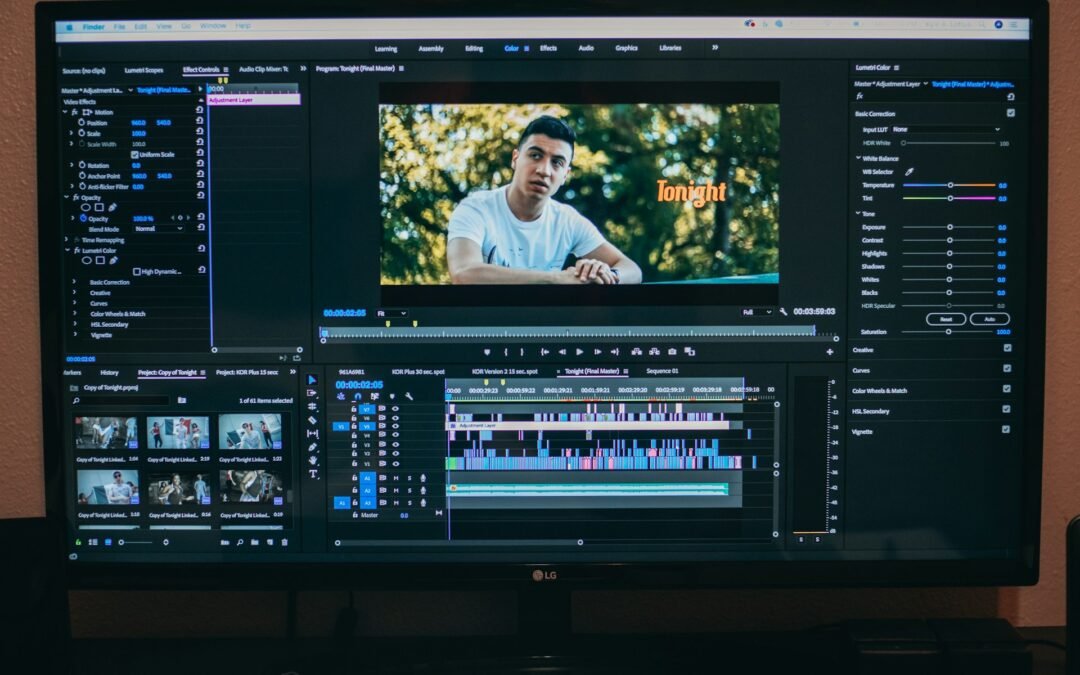
If you have been searching for practical ways on how to fix pixelated video, the good news is that modern video enhancement tools, editing software, and playback optimization techniques can often restore clarity and significantly improve overall video quality. From adjusting resolution settings to using AI-powered video repair software, there are several effective approaches that can help reduce or eliminate pixelation issues.
Pixelation is one of the most common and frustrating issues that video creators, editors, and viewers encounter. It occurs when individual pixels become visible to the naked eye, resulting in a blocky, blurry, or mosaic-like appearance that significantly degrades the viewing experience. Understanding the root causes of pixelation is the first essential step toward finding the most effective solution for your specific situation.
Whether you are dealing with a pixelated recording, a downloaded video file, or a streaming issue, there are multiple proven methods to address this problem. This comprehensive guide will walk you through the most reliable techniques on how to fix pixelated video, regardless of the platform or device you are using.
Common Causes of Pixelated Videos
Before applying any fix, it is important to identify what is causing the pixelation in the first place. The most frequent culprits include:
- Low Bitrate: A low bitrate during recording or encoding compresses video data too aggressively, resulting in visible blocks and distortions.
- Poor Internet Connection: When streaming videos online, an unstable or slow internet connection can cause the video player to downgrade quality dynamically, leading to pixelation.
- Incorrect Resolution Settings: Upscaling a low-resolution video to fit a higher-resolution screen magnifies individual pixels, making them clearly visible.
- Codec Issues: Incompatible or outdated video codecs can cause decoding errors that manifest as pixelation or visual artifacts.
- Corrupted Video Files: File corruption due to incomplete downloads, transfer errors, or storage failures can introduce pixelation into specific sections of a video.
- Over-Compression: Applying too much compression during export reduces the amount of visual data in a video, causing loss of detail and blocky imagery.
- Camera or Recording Settings: Using incorrect camera settings, such as a low frame rate or resolution, during the original recording process can permanently affect video quality.
How to Fix Pixelated Video: Step-by-Step Solutions for Better Video Quality
Once you have identified the likely cause of the pixelation, you can apply one or more of the following solutions. These methods range from simple adjustments to more advanced video repair techniques.
1. Use a Professional Video Repair Tool
When dealing with corrupted or severely pixelated video files, a dedicated video repair tool is often the most effective solution. Several reputable software applications are specifically designed to fix visual artifacts, pixelation, and data corruption in video files.
Some of the most trusted tools include:
- Stellar Repair for Video: A widely used application capable of repairing heavily corrupted MP4, MOV, AVI, and other video formats.
- Wonder share Repair it: Offers both basic and advanced repair modes for fixing pixelation, blurry frames, and out-of-sync issues.
- Div Fix++: A free, open-source tool particularly useful for repairing AVI files with playback errors.
To use most video repair tools, follow these general steps:
- Download and install the video repair software of your choice.
- Launch the program and import the pixelated or corrupted video file.
- Select the repair or fix option and allow the software to analyze the file.
- Preview the repaired video and save it to your desired location.
2. Re-Encode or Re-Export the Video at a Higher Bitrate
If the pixelation is caused by low bitrate encoding, re-exporting the video with improved settings can make a significant difference. Use a professional video editing or conversion tool such as Adobe Premiere Pro, DaVinci Resolve, or Hand Brake to re-encode the file.
When re-encoding, pay attention to the following settings:
- Bitrate: Increase the video bitrate. For 1080p content, a bitrate of at least 8 -12 Mbps is recommended for high-quality output.
- Codec: Use a modern, efficient codec such as H.264 or H.265 (HEVC) for better compression without sacrificing quality.
- Resolution: Ensure the output resolution matches the native resolution of your footage to prevent unnecessary upscaling.
- Frame Rate: Maintain the original frame rate to avoid visual inconsistencies during playback.
3. Apply Deblocking or Sharpening Filters
Video editing software often includes built-in filters that can reduce the appearance of pixelation without requiring a full re-encode. Two of the most effective filters for this purpose are:
- Deblocking Filter: Specifically designed to smooth out the blocky artifacts that result from heavy compression. This filter is available in tools like VLC Media Player, FF mpeg, and Adobe Premiere Pro.
- Sharpening Filter: Enhances edge definition and brings back detail that may have been lost during compression. However, it should be applied with caution, as over-sharpening can introduce additional artifacts.
To apply a deblocking filter in VLC Media Player:
- Open VLC and go to Tools > Preferences.
- Select All under the Show Settings option.
Navigate to Input / Codecs > Video Codecs > FF mpeg.
Locate the Deblocking Filter setting and increase the value gradually.
Save the changes and restart VLC before testing the video again. While filters cannot fully restore lost data, they can noticeably reduce compression artifacts and improve visual clarity.
4. Improve Streaming Quality and Internet Stability
If videos appear pixelated only while streaming online, the issue is often related to bandwidth limitations rather than the video file itself. Most streaming platforms automatically lower video quality when internet speeds fluctuate.
To improve streaming quality:
- Switch to a faster or more stable Wi-Fi connection.
- Pause the video for a few moments to allow buffering.
- Manually set the playback quality to 1080p or higher within the video player settings.
- Close bandwidth-heavy applications running in the background.
- Restart your router if connection instability persists.
Streaming services like YouTube, Netflix, and Twitch dynamically adjust video quality based on available bandwidth, so maintaining a stable connection is critical for avoiding pixelation.
5. Update Video Drivers and Codecs
Outdated graphics drivers or missing codecs can sometimes cause playback issues that resemble pixelation. Ensuring your system is fully updated can resolve compatibility-related visual artifacts.
On Windows:
- Open Device Manager.
- Expand Display Adapters.
- Right-click your graphics card and select Update Driver.
You should also install the latest codec packs if necessary. Trusted codec collections include:
- K-Lite Codec Pack
- Combined Community Codec Pack (CCCP)
For Mac users, keeping macOS updated generally ensures codec compatibility for most modern video formats.
6. Avoid Excessive Video Compression
One of the most common mistakes during video export is applying aggressive compression settings to reduce file size. While smaller files are easier to upload and share, over-compression removes critical visual information.
To minimize quality loss:
- Export videos using a higher bitrate.
- Use two-pass encoding whenever possible for better compression efficiency.
- Avoid repeatedly re-exporting the same video file multiple times.
- Choose professional export presets optimized for your target platform.
For example, YouTube recommends significantly higher bitrates for 4K and high-motion content to preserve detail after platform-side compression.
7. Use AI Video Enhancement Tools
Artificial intelligence has significantly improved video restoration capabilities in recent years. AI-powered enhancement tools can upscale low-resolution footage, reduce noise, and reconstruct missing visual details more effectively than traditional filters.
Popular AI video enhancement tools include:
- Topaz Video AI
- AVC Labs Video Enhancer AI
- Adobe Premiere Pro AI Features
These tools analyze frames individually and use machine learning models to predict and restore lost detail. If you are exploring advanced methods on how to fix pixelated video, AI-powered enhancement software is one of the most effective modern solutions available. While results vary depending on the original footage quality, AI enhancement can dramatically improve older, blurry, or heavily compressed videos.
8. Check the Original Source File
Sometimes the pixelation is already embedded in the source footage, meaning no amount of editing or repair can fully eliminate it. If possible:
- Locate the original uncompressed recording.
- Transfer the file again from the recording device.
- Avoid using heavily compressed versions downloaded from social media platforms.
Platforms such as WhatsApp, Facebook Messenger, and Instagram aggressively compress videos during uploads, often introducing visible artifacts and pixelation.
How to Prevent Pixelated Videos in the Future
Prevention is always easier than repair. Following a few best practices during recording, editing, and exporting can significantly reduce the risk of future pixelation issues.
- Record at the highest resolution your device supports.
- Use adequate lighting to minimize digital noise.
- Maintain stable internet speeds during uploads and streaming.
- Avoid excessive compression during export.
- Store original raw footage whenever possible.
- Use modern codecs like H.264 or H.265 for better quality retention.
- Regularly update your editing software, codecs, and graphics drivers.
Frequently Asked Questions
1. Can a pixelated video be fully restored?
It depends on the severity of the damage. Mild compression artifacts and minor corruption can often be improved significantly, but permanently lost detail cannot always be fully recovered.
2. Why does my video look clear on my phone but pixelated on my TV?
This usually happens because the video resolution is too low for the larger display. A video that appears acceptable on a small smartphone screen may reveal pixelation when stretched across a large television.
3. Does converting a video improve quality?
Converting alone does not increase true quality, but re-encoding with better settings or modern codecs can reduce visible artifacts and improve playback stability.
4. Can VLC Fix Pixelated Videos? How to Fix Pixelated Video Using VLC
VLC cannot repair damaged files directly, but its deblocking and sharpening filters can help reduce the appearance of pixelation during playback.
Final Thoughts
Pixelation can make even high-quality footage look unprofessional, but in many cases, the problem is fixable with the right approach. Whether the issue stems from low bitrate compression, file corruption, poor streaming quality, or outdated codecs, there are reliable solutions available for virtually every scenario. The most important step is correctly identifying the root cause before attempting repairs. Once you understand why the pixelation is happening, choosing the right method becomes far easier and more effective.
If you are wondering how to fix pixelated video, solutions can range from adjusting export settings and improving internet speed to using advanced video repair and AI enhancement software. From professional repair software to AI-powered enhancement tools, modern technology offers multiple ways to restore clarity and improve video quality. Learning how to fix pixelated video not only helps salvage damaged footage but also improves your long-term video editing and recording workflow. By applying the techniques outlined in this guide, you can confidently troubleshoot and resolve most pixelation issues while also learning how to prevent them from happening again in future recordings and exports.
Photo by Kyle Loftus on Unsplash