
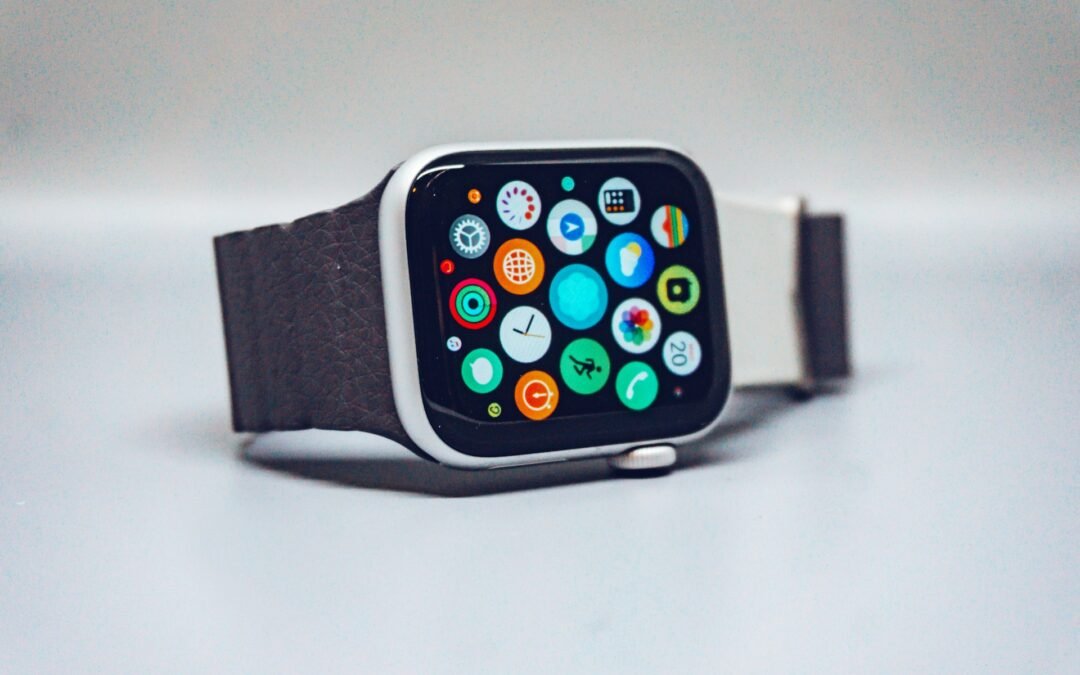
Upgrading to a new Phone is an exciting experience, but it also comes with the responsibility of ensuring that all your connected devices are properly transferred and set up. One of the most important accessories to reconnect is your Apple Watch. Understanding how to connect Apple Watch to a new phone can save you time, prevent data loss, and ensure a seamless transition. This comprehensive guide walks you through every step of the process, from backing up your current data to completing the pairing on your new device.

Why Proper Setup Matters for How to Connect Apple Watch to New Phone ?

Apple Watch stores a significant amount of personal data, including health metrics, fitness activity, app settings, and customized watch faces. If you simply disconnect it without following the correct procedure, you risk losing this valuable information. By following the recommended steps, you ensure that your watch is correctly linked to your new iPhone while preserving all your preferences and historical data.

Additionally, Apple Watch can only be paired with one iPhone at a time. This means that before connecting it to a new device, you must formally unpair it from the old one a process that automatically creates a backup on your current iPhone.

Before You Begin: How to Connect Apple Watch to New Phone ?

Before starting the process of connecting your Apple Watch to a new iPhone, make sure you have the following ready:

  • Your current iPhone (the one already paired with the Apple Watch)
  • Your new iPhone, fully set up with your Apple ID
  • The Apple Watch and its charger
  • A stable Wi-Fi connection
  • The latest version of iOS installed on both iPhones (if possible)
  • Your Apple ID credentials

Having everything prepared in advance will ensure a smooth, uninterrupted process from start to finish.

Step 1: Back Up Your Apple Watch Data

Before unpairing your Apple Watch from your old iPhone, it is essential to create a backup. Fortunately, Apple simplifies this by automatically generating a backup when you unpair the watch. However, you should first ensure that your current iPhone has been backed up to iCloud, as your Apple Watch backup is stored within your iPhone backup.

To back up your iPhone to iCloud:

  1. Open the Settings app on your current iPhone.
  2. Tap your Apple ID at the top of the screen.
  3. Select iCloud, then tap iCloud Backup.
  4. Tap Back Up Now and wait for the process to complete.

Once your iPhone backup is complete, you are ready to proceed with unpairing your Apple Watch.

Step 2: Unpair Your Apple Watch from Your Old iPhone

Unpairing your Apple Watch is a critical step in the process. This action erases the watch and creates a final backup, which will be used to restore your settings on the new iPhone.

To unpair your Apple Watch:

  1. Keep your Apple Watch and old iPhone close together.
  2. Open the Watch app on your old iPhone.
  3. Tap the My Watch tab at the bottom of the screen.
  4. Tap your watch’s name at the top of the screen.
  5. Tap the information icon (i) next to your watch.
  6. Select Unpair Apple Watch.
  7. Confirm the unpairing when prompted. If you have a cellular Apple Watch, you will be asked whether to keep or remove your cellular plan.
  8. Enter your Apple ID password to disable Activation Lock.
  9. Tap Unpair to confirm.

The unpairing process may take a few minutes. Once complete, your Apple Watch will display a welcome screen, indicating it is ready to be paired with a new device.

Step 3: Set Up Your New iPhone

If you have not already configured your new iPhone, do so before attempting to pair your Apple Watch. During the iPhone setup process, you will be prompted to restore from an iCloud backup. Choose the most recent backup, which should contain your Apple Watch backup as well.

To restore your new iPhone from an iCloud backup:

  1. Turn on your new iPhone and follow the on-screen setup instructions.
  2. When prompted, select Restore from iCloud Backup.
  3. Sign in with your Apple ID and choose the most recent backup.
  4. Allow the restoration process to complete before proceeding.

It is important to complete this step before pairing your Apple Watch to ensure that all your watch data is properly restored during the pairing process.

Step 4: Pair Your Apple Watch with Your New iPhone

Once your new iPhone is fully set up and restored, you can proceed to pair your Apple Watch. The process is straightforward and guided by both devices.

Follow these steps to pair your Apple Watch:

  1. Ensure Bluetooth and Wi-Fi are enabled on your new iPhone.
  2. Open the Watch app on your new iPhone.
  3. Tap Start Pairing.
  4. Hold your Apple Watch near your new iPhone. A pairing animation will appear on the watch face.
  5. Position your iPhone’s camera so that the Apple Watch face appears within the viewfinder on screen.
  6. Wait for the message “Your Apple Watch is Paired” to appear on your iPhone.

After the pairing is successful, you will be prompted to restore your Apple Watch from a backup. Select the most recent backup available to recover your apps, settings, health data, and watch faces. The restoration process may take some time, depending on the amount of data stored on your Apple Watch. Keep both devices close together and connected to Wi-Fi until the process is complete.

Step 5: Complete the Apple Watch Setup

Once the backup restoration finishes, your Apple Watch will restart and sync with your new iPhone. During this stage, you may be asked to review or confirm several settings, including:

  • Apple Pay cards
  • Location Services
  • Siri preferences
  • Health permissions
  • App installation settings
  • Cellular setup (for GPS + Cellular models)

Review options to customize your watch. After setup, it will sync with your new iPhone for notifications, health tracking, messaging, and apps. If you don’t have your old iPhone, you can still pair your Apple Watch with a new device by erasing it first.

To connect your Apple Watch without the old iPhone:

  • Open the Settings app directly on your Apple Watch.
  • Go to General > Reset.
  • Tap Erase All Content and Settings.
  • Enter your passcode if prompted.
  • Confirm the reset.

For cellular models, decide whether to keep or remove the cellular plan. Keeping it is usually the best option if you plan to use the same carrier and phone number. After the reset, pair your Apple Watch with your new iPhone using the standard setup process. If you are wondering how to connect apple watch to new phone without losing important settings, creating a backup beforehand is highly recommended, as some data may not be recoverable without it. Common pairing issues can still occur, so here are some practical solutions.

Apple Watch Stuck on Pairing Screen

If your watch becomes stuck during pairing:

  • Restart both your iPhone and Apple Watch.
  • Ensure both devices are running the latest software versions.
  • Verify that Bluetooth and Wi-Fi are enabled.
  • Try resetting network settings on your iPhone if the issue persists.

Unable to Restore Backup

Sometimes an Apple Watch backup may not appear during setup. This usually happens if:

  • The iPhone backup was outdated.
  • The Apple Watch was not properly unpaired.
  • The new iPhone is running an older iOS version.

Updating your iPhone to the latest iOS version often resolves compatibility issues.

Activation Lock Problems

  • If your Apple Watch still requests the previous Apple ID after reset, Activation Lock is enabled.
  • You must enter the original Apple ID credentials used to set up the watch.
  • This security feature helps prevent unauthorized access to lost or stolen devices.

Tips for How to Connect Apple Watch to New Phone Smoothly

To minimize complications and ensure a seamless migration experience, follow these best practices:

  • Fully charge both your iPhone and Apple Watch before starting.
  • Keep devices close together during setup and restoration.
  • Use a stable Wi-Fi connection to avoid interruptions.
  • Update both devices to the latest software versions beforehand.
  • Do not interrupt the backup or pairing process once it begins.

Taking these precautions can significantly reduce setup time and prevent unexpected errors.

Frequently Asked Questions

  1. Can I pair one Apple Watch with multiple iPhones?

    No. An Apple Watch can only be actively paired with one iPhone at a time. You must unpair it from the current device before connecting it to another iPhone.

  2. Will I lose my health and fitness data?

    If you correctly back up your iPhone and restore from that backup, your health and fitness data should transfer successfully to your new device.

  3. How long does the pairing process take?

    The full process, including backup restoration, usually takes between 15 minutes and one hour depending on your internet speed and the amount of data being transferred.

  4. Do I need the same Apple ID on the new iPhone?

    Yes. Using the same Apple ID ensures access to your backups, iCloud data, Apple Pay settings, and Activation Lock verification.

Final Thoughts

Learning how to connect Apple Watch to a new phone is essential whenever upgrading your iPhone. By carefully backing up your data, properly unpairing the watch, and restoring from the latest backup, you can move to your new device without losing valuable information or settings.

If you have been searching for how to connect apple watch to new phone, the good news is that Apple has designed the process to be relatively user-friendly. However, following each step in the correct order is the key to avoiding errors and ensuring a smooth transition. Whether you still have your old iPhone or need to reset the watch manually, the methods outlined above will help you reconnect your Apple Watch quickly and efficiently.

Photo by Simon Daoudi on Unsplash