

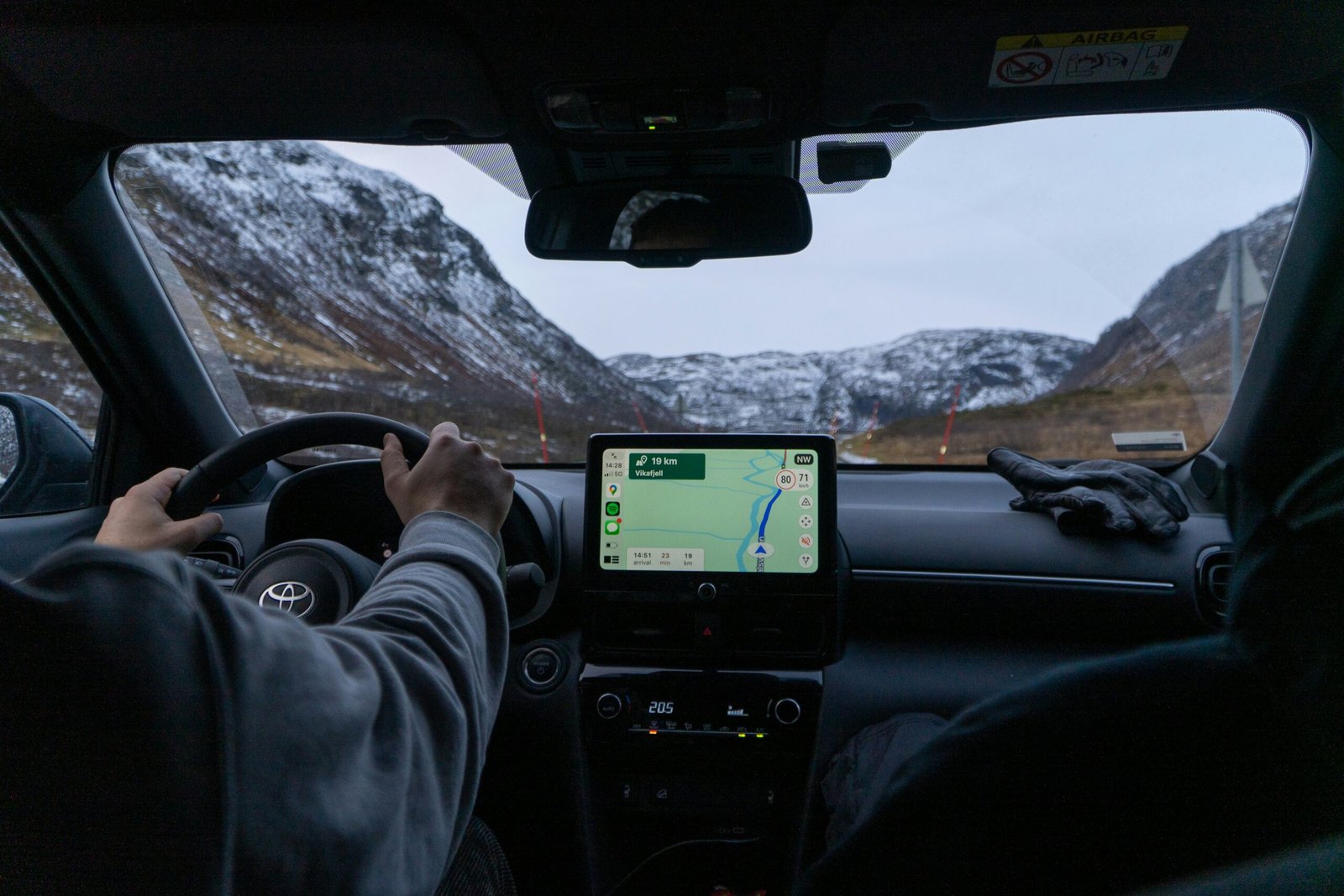
Understanding Why Your GPS Is Not Working
GPS technology has become an indispensable part of modern life, guiding us through unfamiliar roads, tracking fitness activities, and enabling countless applications on our smartphones and devices. However, when GPS fails to function correctly, it can cause significant inconvenience and frustration. Before exploring how to fix GPS not working issues, it is essential to understand the common reasons behind GPS failures.
GPS signal problems can stem from a variety of sources, including hardware malfunctions, software glitches, environmental interference, or incorrect device settings. Identifying the root cause is the first step toward resolving the issue effectively and efficiently.
Common Causes of GPS Not Working
Several factors can contribute to GPS malfunction on your device. Understanding these causes will help you apply the most appropriate solution:
- Poor Signal Reception: Buildings, dense tree cover, tunnels, and adverse weather conditions can obstruct GPS signals from reaching your device.
- Incorrect Location Settings: If location services are disabled or set to a low-accuracy mode, your GPS may not function as expected.
- Outdated Software or Firmware: Running an outdated operating system can cause compatibility issues that affect GPS performance.
- Corrupted GPS Data: Cached GPS data that becomes corrupted can prevent accurate location detection.
- Hardware Damage: Physical damage to the GPS antenna or chip inside the device can lead to complete GPS failure.
- Third-Party Application Conflicts: Some apps may interfere with the GPS system, causing inaccurate readings or complete failure.
- Battery Saver Mode: Aggressive battery saving settings can limit GPS functionality to conserve power.
How to Fix GPS Not Working: Step-by-Step Solutions
The following methods outline effective ways to troubleshoot and resolve GPS issues on various devices. Work through these solutions systematically to identify and fix the problem.
1. Toggle Location Services Off and On
One of the simplest yet most effective solutions is to toggle your device’s location services. This action forces the GPS receiver to reset and re-establish a connection with satellites.
- On Android: Navigate to Settings > Location and toggle the switch off, wait a few seconds, then turn it back on.
- On iPhone (iOS): Go to Settings > Privacy & Security > Location Services and toggle it off, then back on.
2. Restart Your Device
A simple device restart can resolve temporary software glitches that may be causing GPS malfunction. Restarting clears the device’s memory, terminates unnecessary background processes, and refreshes system services including GPS.
Hold the power button on your device, select Restart, and allow the device to fully reboot before testing the GPS functionality again.
3. Check and Update Your Device’s Software
Outdated operating systems can contain bugs that interfere with GPS performance. Keeping your device updated ensures compatibility with GPS satellites and applications.
- Android: Go to Settings > Software Update > Download and Install to check for available updates.
- iPhone: Navigate to Settings > General > Software Update and install any pending updates.
4. Enable High-Accuracy GPS Mode
Most smartphones offer multiple location accuracy modes. Switching to the high-accuracy mode allows the device to use GPS, Wi-Fi, mobile networks, and sensors simultaneously to deliver the most precise location data.
- Android: Go to Settings > Location > Location Mode and select High Accuracy.
- iPhone: Ensure that Wi-Fi is enabled alongside location services, as iOS automatically uses multiple sources for improved accuracy.
5. Clear GPS Cache Data
Corrupted or outdated GPS cache files can prevent your device from acquiring a proper satellite lock. Clearing this data forces the GPS system to download fresh satellite information.
On Android devices, you can clear the GPS cache by following these steps:
- Go to Settings > Apps (or Application Manager).
- Locate and select the app responsible for GPS or map functions (e.g., Google Maps).
- Tap Storage, then select Clear Cache.
Additionally, some Android devices allow you to use third-party tools such as GPS Status & Toolbox to manage and reset GPS data more comprehensively.
6. Disable Battery Saver Mode
Battery saver or power-saving modes often limit the device’s GPS functionality to reduce power consumption. Disabling these modes can restore full GPS performance.
- Android: Navigate to Settings > Battery > Battery Saver and turn it off.
- iPhone: Go to Settings > Battery and disable Low Power Mode.
7. Move to an Open Area
Environmental obstructions are a leading cause of GPS signal loss. If you are indoors, surrounded by tall buildings, or in an underground location, your GPS signal will be significantly weakened or completely blocked.
Conclusion
In conclusion, GPS issues can arise from a range of factors, including signal interference, incorrect settings, or software glitches. By understanding the common causes and applying simple troubleshooting steps, most GPS problems can be resolved quickly. With the right approach, you can restore accurate location tracking and ensure a smoother, more reliable navigation experience.
Photo by Ed Wingate on Unsplash





Leave a Reply