
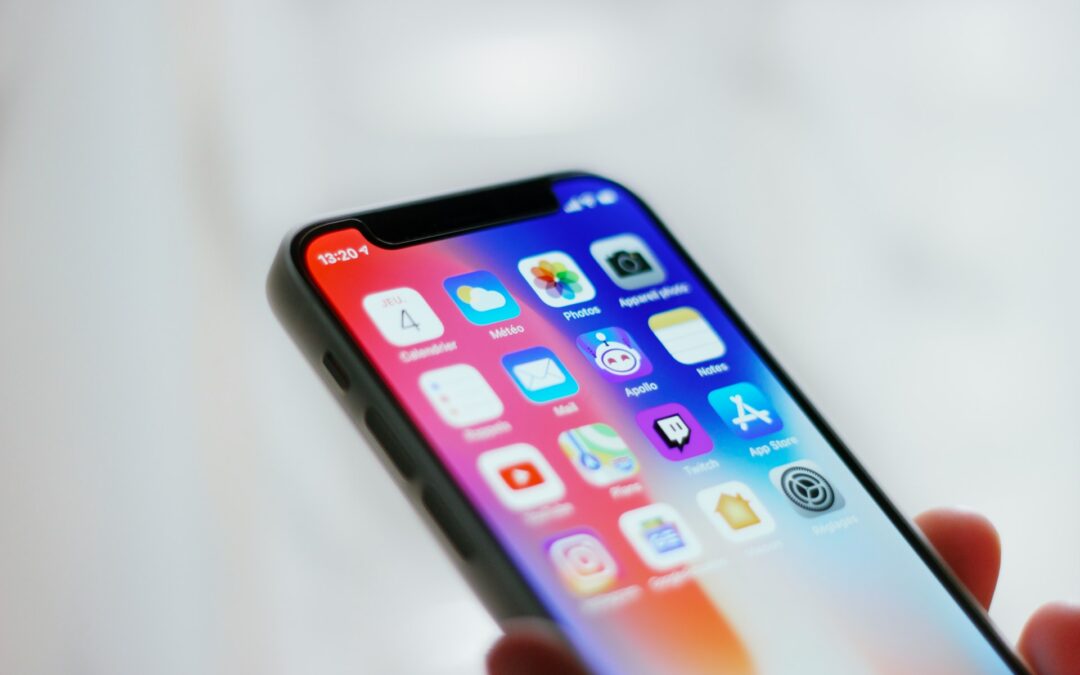
Your iPhone can become congested with applications you no longer use, taking up valuable storage space and cluttering your home screen. Knowing how to delete applications on an iPhone will help you stay organized and keep your phone performing well. You can delete applications you never use, remove preinstalled applications, or free up space to download applications. This article shows you the simplest ways to quickly and effectively uninstall applications on your iPhone.
How to Delete Apps on iPhone
If your iPhone has apps you never use, removing those apps can create more space and help streamline your device. Whether you’re removing one you downloaded or one that came on the iPhone, it’s a simple process. Here are the easy steps for deleting apps from your iPhone.
1. Delete Apps from the Home Screen
- Find the app you want to delete on your Home Screen.
- Tap and hold the app icon until a menu appears.
- Select “Remove App.”
- Choose “Delete App” to permanently remove it from your device.
- Confirm by tapping “Delete.”
2. Delete Apps via App Library (iOS 14 and Later)
- Swipe left until you reach the App Library.
- Find the app using the search bar or browse through categories.
- Tap and hold the app icon.
- Tap “Delete App” → Confirm to remove it
3. Delete Apps from iPhone Settings
- Go to Settings → General → iPhone Storage
- Scroll through the list and select the app you want to delete.
- Tap “Delete App.”
- Confirm the deletion when prompted.
4. Delete Built-In Apple Apps (Optional)
- Tap and hold the app on your Home Screen.
- Tap “Remove App” → “Delete App.”
- Confirm to remove it.
5. Delete Apps Using iTunes or Finder (on a Computer)
- Connect your iPhone to your Mac or PC.
- Open Finder (macOS Catalina and later) or iTunes (older versions).
- Select your device and find the Apps section.
- Delete or manage apps from there.
6. Can’t Delete Apps? Here’s What to Do
If you’re unable to delete apps, try these quick fixes:
- Restart your iPhone: Sometimes, a simple restart resolves temporary software glitches.
- Check Restrictions: Go to Settings → Screen Time → Content & Privacy Restrictions → iTunes & App Store Purchases → Deleting Apps, and make sure it’s allowed.
- Update iOS: Ensure your iPhone is running the latest version of iOS.
- Force Delete via Settings: If the app still won’t delete, try removing it through Settings → General → iPhone Storage.
7. What Happens When You Delete an App
- The app and its associated data are removed from your device.
- Any documents or files stored in iCloud remain safe.
- Purchased apps can be re-downloaded from the App Store anytime without paying again.
How to Protect Your Privacy When Deleting Apps
Deleting apps from your iPhone or Android device may seem like a simple way to free up space, but it’s also an important step in protecting your privacy. Many apps collect personal data such as location, contacts, browsing history, or login details — and simply deleting the app icon doesn’t always erase this information completely. Before you uninstall any app, it’s essential to make sure your private data is fully removed and your accounts are secure.
Final Thoughts
Deleting apps on your iPhone is a simple way to free up space, improve performance, and keep your device organized. Whether you use the Home Screen, App Library, or Settings, iOS offers multiple easy methods to remove unwanted apps in just a few taps. Regularly reviewing and deleting unused apps ensures your iPhone stays clutter-free and runs smoothly, giving you more room for the things that matter most.
Trackbacks/Pingbacks