

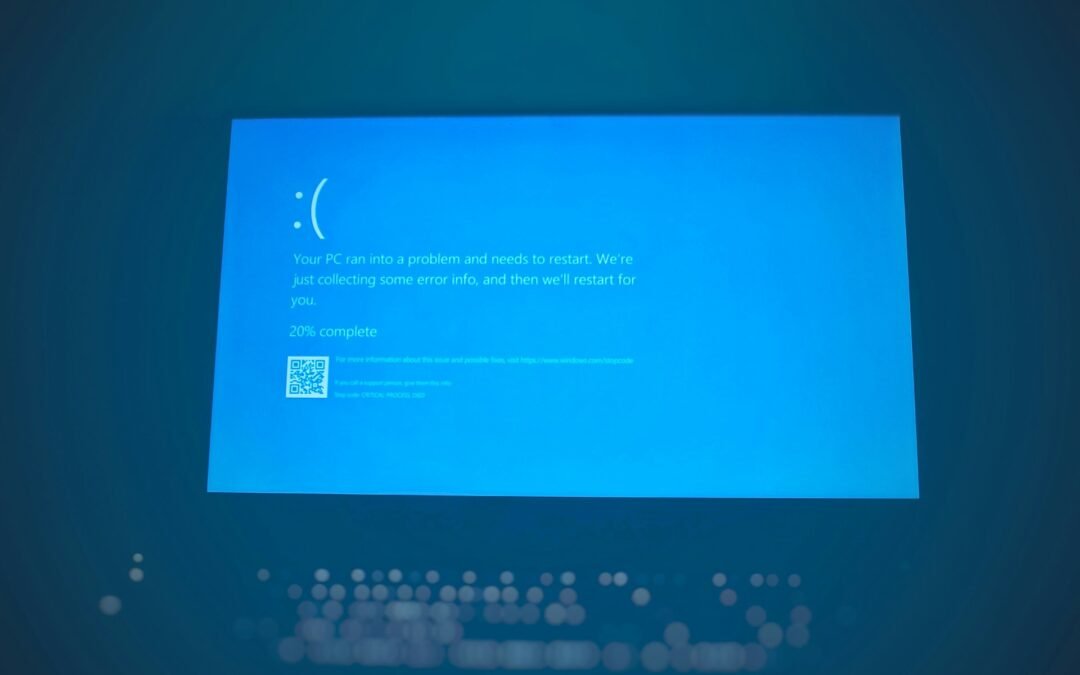
Windows Update errors are one of those things that show up at the worst possible time usually right before a deadline, or when you’re trying to apply a critical security patch. The spinner spins. Nothing happens. Then you get a cryptic error code like 0x80070005 and zero explanation for what went wrong.
The frustrating part? Most of these errors have straightforward fixes. You don’t need to reinstall Windows, and you don’t need to call IT. This guide breaks down every major Windows Update error by code, explains what’s actually causing it, and walks you through fixes in the right order from the simplest to the more involved.
What Causes Windows Update Errors?
Before jumping into fixes, it helps to know what you’re actually fighting against. Windows Update errors usually come from one of five root causes:
Corrupted update cache – Windows stores downloaded update files in a folder called SoftwareDistribution. If files in there get corrupted or half-downloaded, future updates fail.
Conflicting background services – The Windows Update service, BITS (Background Intelligent Transfer Service), and Cryptographic Services all need to be running in sync. If any one of them stalls, everything breaks.
Insufficient disk space – Updates, especially feature updates, need several gigabytes of free space. If your C: drive is nearly full, the update process will fail partway through.
Antivirus or firewall interference – Some third-party security tools block Windows Update from connecting to Microsoft’s servers or writing files to protected directories.
Permissions issues – Update errors like 0x80070005 are almost always access denied errors, where Windows Update can’t write to a directory it needs. Knowing which category your error falls into cuts the troubleshooting time significantly.
How to Fix Windows Update Errors: Step-by-Step
Step 1: Run the Windows Update Troubleshooter
This is your starting point. Microsoft built a dedicated troubleshooter that detects and automatically fixes the most common update problems.
On Windows 11: Go to Settings → System → Troubleshoot → Other troubleshooters → find Windows Update and hit Run.
On Windows 10: Go to Settings → Update & Security → Troubleshoot → Additional troubleshooters → Windows Update → Run the troubleshooter.
Let it complete. It will detect stuck services, reset components, and clear known problem states. Run a Windows Update check after it finishes before trying anything else.
Step 2: Clear the Windows Update Cache
If the troubleshooter doesn’t fix it, clearing the update cache is the next most effective move. Open Command Prompt as Administrator (search for cmd, right-click, select “Run as administrator”) and run these commands in order:
net stop wuauserv
net stop cryptSvc
net stop bits
net stop msiserverNow rename the SoftwareDistribution folder (this clears the cache without deleting anything permanently):
ren C:\Windows\SoftwareDistribution SoftwareDistribution.oldren C:\Windows\System32\catroot2 catroot2.oldRestart the services:
net start wuauserv
net start cryptSvc
net start bits
net start msiserver
Restart your PC and try Windows Update again. Windows will rebuild the SoftwareDistribution folder from scratch.
Step 3: Run SFC and DISM to Fix System File Corruption
If the update cache wasn’t the problem, corrupted system files might be. Two built-in tools handle this:
System File Checker (SFC) scans and repairs Windows system files:
sfc /scannowRun this in an elevated Command Prompt and wait for it to complete it can take 10–20 minutes.
DISM (Deployment Image Servicing and Management) goes deeper and repairs the Windows component store itself:
DISM /Online /Cleanup-Image /RestoreHealthThis one contacts Microsoft’s servers to pull replacement files, so make sure you’re connected to the internet when running it. After both complete, restart and retry the update.
Step 4: Fix Specific Windows Update Error Codes
Different error codes point to different problems. Here’s a breakdown of the most common ones:
Error 0x80070005 – Access Denied
This is a permissions error. Windows Update is being blocked from writing to a directory it needs.
Fixes:
- Temporarily disable your antivirus and retry the update
- Make sure you’re logged in as an Administrator account, not a standard user
- Run SFC (see Step 3) – corrupted permission settings on system folders cause this frequently
Error 0x800705b4 – Timeout Error
The update process is taking too long and timing out. Usually caused by a slow connection, a stalled Windows Update service, or a corrupted update component.
Fixes:
- Restart the Windows Update service: open
services.msc, find Windows Update, right-click → Restart - Clear the update cache (Step 2)
- If you’re on Wi-Fi, switch to a wired connection temporarily
Error 0x80240034 – Update Not Found / WU_E_DOWNLOAD_FAILED
Windows found the update but couldn’t download it. Usually a network issue or a corrupted update catalog.
Fixes:
- Run DISM (Step 3)
- Try downloading the update manually from Microsoft Update Catalog (catalog.update.microsoft.com) search by KB number and install it directly
Error 0x8007000d – Corrupted Update File
The update file itself is damaged.
Fixes:
- Clear the SoftwareDistribution folder (Step 2)
- Run DISM with /RestoreHealth
- Download the standalone update package from Microsoft’s Update Catalog
Error 0x80073712 – Missing Required File
A file needed by the update is missing or corrupted.
Fix: Run sfc /scannow first. If that doesn’t work, run DISM, then retry.
Error 0xc1900101 – Driver Compatibility Issue (usually during Feature Updates)
This error (and its variants like 0xc1900101-0x20017, 0xc1900101-0x40017) shows up during major version upgrades. A driver is incompatible with the new Windows version.
Fixes:
- Update all drivers before attempting the upgrade especially GPU, chipset, and storage drivers
- Disconnect external peripherals (printers, docks, USB hubs) and retry
- Check the manufacturer’s site for Windows 11 compatible drivers if upgrading from Windows 10
Step 5: Free Up Disk Space
Feature updates (like upgrading to a new version of Windows 11) need at least 20 GB of free space. Regular monthly patches need less, but running low on disk space causes silent failures.
Check your C: drive space in File Explorer. If you’re under 10 GB free:
- Run Disk Cleanup (search for it in the Start menu) and select all options including “Clean up system files”
- Delete old Windows installation files Disk Cleanup will show “Previous Windows Installation(s)” if present
- Uninstall apps you don’t use from Settings → Apps
If your system is consistently running low on storage, it might be time to think about an upgrade check out our guide on 128GB laptops and what to look for when buying if you’re considering a hardware refresh.
Step 6: Reset Windows Update Components Manually
If none of the above has worked, you need to do a full reset of all Windows Update components. This is more aggressive but still reversible.
Open Command Prompt as Administrator and run:
net stop wuauserv
net stop cryptSvc
net stop bits
net stop msiserver
regsvr32 atl.dll
regsvr32 urlmon.dll
regsvr32 mshtml.dll
regsvr32 shdocvw.dl
regsvr32 browseui.dll
regsvr32 jscript.dll
regsvr32 vbscript.dll
regsvr32 scrrun.dll
regsvr32 msxml.dll
regsvr32 msxml3.dll
regsvr32 msxml6.dll
regsvr32 actxprxy.dll
regsvr32 softpub.dll
regsvr32 wintrust.dll
regsvr32 dssenh.dll
regsvr32 rsaenh.dll
regsvr32 gpkcsp.dll
regsvr32 sccbase.dll
regsvr32 slbcsp.dll
regsvr32 cryptdlg.dll
regsvr32 oleaut32.dll
regsvr32 ole32.dll
regsvr32 shell32.dll
regsvr32 initpki.dll
regsvr32 wuapi.dll
regsvr32 wuaueng.dll
regsvr32 wuaueng1.dll
regsvr32 wucltui.dll
regsvr32 wups.dll
regsvr32 wups2.dll
regsvr32 wuweb.dll
regsvr32 qmgr.dll
regsvr32 qmgrprxy.dll
regsvr32 wucltux.dll
regsvr32 muweb.dll
regsvr32 wuwebv.dll
net start wuauserv
net start cryptSvc
net start bits
net start msiserver
Restart your PC after this and check for updates again.
Step 7: Install Updates Manually via Microsoft Update Catalog
Sometimes the automated Windows Update channel is broken for a specific patch but the file itself is fine. You can bypass the update system entirely by downloading the update directly.
- Find the KB number of the failing update (visible in Windows Update history under Settings → Windows Update → Update history)
- Go to catalog.update.microsoft.com
- Search for the KB number
- Download the version matching your Windows version and CPU architecture (x64 for most modern PCs)
- Run the downloaded
.msufile and follow the prompts
This method bypasses Windows Update completely and installs the patch directly it works for the majority of stuck or failing updates.
Step 8: Check for Conflicting Software
Some software genuinely breaks Windows Update. The main offenders are:
- VPNs – Many VPNs intercept network traffic in a way that blocks Windows Update’s connection to Microsoft servers. Disable your VPN before running updates.
- Third-party antivirus – Norton, McAfee, Kaspersky, and others have been known to block update components. Temporarily disable real-time protection for the update.
- Registry cleaners – Tools like C Cleaner’s registry cleaner sometimes delete keys that Windows Update depends on. Avoid running these if you’re experiencing update problems.
Security software on your device is as important as keeping Windows itself up to date. If you’re thinking about broader system security, our overview of what a cloud security engineer does gives useful context on how security layers interact at the system level.
Step 9: Use the Media Creation Tool for Major Version Updates
If a Feature Update (Windows 11 version upgrade) is specifically failing not a regular monthly patch the Media Creation Tool is the most reliable fix.
- Download the Windows 11 Installation Assistant or Media Creation Tool from Microsoft’s official website
- Run it and choose “Upgrade this PC now”
- It performs the same upgrade but through a different channel, bypassing whatever is blocking the update process
This method also works if you’re stuck on an old Windows 10 version and can’t get feature updates to apply.
What to Do If Nothing Works
If you’ve tried everything above and Windows Update is still failing, there are two realistic options:
In-Place Upgrade Repair: Download the Windows 11 ISO from Microsoft, mount it, and run setup.exe with the “Keep your files and apps” option. This reinstalls Windows on top of itself, repairing corrupted components without deleting your data. It’s the nuclear option for software issues, but it works.
Check Windows Event Viewer: Open Event Viewer (search in Start menu), navigate to Windows Logs → System, and filter for errors around the time the update failed. The error codes there are often more specific than what Windows Update shows and can point to the exact cause.
How to Prevent Windows Update Errors in the Future
Fixing a problem once is fine. Not having to fix it again is better.
- Keep at least 15–20 GB free on your C: drive – Updates need working space
- Don’t interrupt updates in progress – Shutting down mid-update is one of the most common causes of corruption
- Keep drivers current – Outdated drivers cause conflicts during feature updates
- Let Windows Update run on its schedule – Delaying updates too long can cause cumulative dependency failures
- Avoid registry cleaners – They delete more than they should, frequently breaking update-related keys
Frequently Asked Questions
- Why does Windows Update keep failing on the same update? The most common reasons are a corrupted Software Distribution cache, a conflicting driver, or insufficient disk space. Clear the update cache first, then check available storage. If the same patch keeps failing, download it manually from the Microsoft Update Catalog using its KB number.
- How do I find the error code for my Windows Update failure? Go to Settings → Windows Update → Update history. Failed updates show with a red icon and an error code alongside them. You can also check Event Viewer → Windows Logs → System for more detailed error information.
- Is it safe to clear the Software Distribution folder? Yes. The Software Distribution folder only contains cached update files. Deleting or renaming it forces Windows to re-download update information from Microsoft’s servers. No personal files or settings are affected.
- Will resetting Windows Update components affect my files? No. The steps in this guide clearing cache, running SFC/DISM, re-registering DLLs only touch Windows system components. Your personal files, installed apps, and settings are not touched by any of these steps.
- How long do Windows Updates normally take? Monthly security updates typically take 5–20 minutes depending on your hardware. Feature updates (major version upgrades) can take 45 minutes to over an hour on older machines. If an update is actively running past 2–3 hours with no progress, it’s likely stuck.
- Can a failed Windows Update brick my PC? A failed update rarely causes serious damage. Windows has a built-in rollback mechanism if an update fails to complete, Windows reverts to the previous state automatically. The worst common outcome is being stuck in a boot loop, which the automatic startup repair tool handles in most cases.
- Does Windows Update error 0x80240034 mean my Windows copy is pirated? Not necessarily. 0x80240034 is a download failure error, not an activation error. It occurs on legitimate Windows installations regularly. If you have genuine Windows activation concerns, check Settings → System → Activation.
Conclusion
Most Windows Update errors aren’t serious they’re annoying, but fixable. Start with the troubleshooter, clear the update cache, and run SFC/DISM. Those three steps resolve the majority of common errors. For specific error codes, match the code to the fix in this guide and work through it methodically.
The one thing to avoid is ignoring update failures for too long. Security patches in particular matter. If a standard fix doesn’t work after a few attempts, the manual update via Microsoft’s Catalog is always there as a reliable fallback.
If you’re dealing with related system slowdowns alongside your update issues, our guide on how to fix a slow boot Mac covers similar troubleshooting logic for Apple users, and many of the diagnostic principles apply across platforms.
Photo by Joshua Hoehne on Unsplash