
Fortnite is one of the most popular online battle royale games in the world, known for its fast-paced gameplay, competitive matches, and frequent updates. Despite its popularity, many players experience lag issues that can negatively affect performance. Problems such as high ping, frame drops, and stuttering often occur due to network instability, system limitations, or improper settings. Learning how to fix lag on Fortnite is essential for achieving smoother gameplay and faster response times. By understanding the common causes of lag and applying the right performance optimizations, players can significantly improve their gaming experience and enjoy more consistent, responsive matches without unnecessary interruptions.
How to Fix Lag on Fortnite and Improve Performance
Lag in Fortnite can be frustrating, especially during fast-paced matches where smooth gameplay is essential, as issues like high ping, frame drops, and stuttering can negatively affect performance. Learning how to fix lag on Fortnite by understanding its causes and making a few adjustments can greatly improve your overall gaming experience.
1. Improve Your Internet Connection
A stable and fast internet connection is crucial for online games like Fortnite. Using Wi-Fi can sometimes cause interference or packet loss, leading to lag spikes. Switching to a wired Ethernet connection, restarting your router, and limiting other internet usage while playing can help maintain smoother gameplay.
2. Choose the Correct Server Region
Fortnite may not always automatically select the best server. Playing on a server far from your location increases ping and causes delays. Selecting the nearest matchmaking region helps reduce latency and improve in-game responsiveness.
3. Lower In-Game Graphics Settings
High graphics settings demand more system resources and can cause frame drops, especially on low-end or older devices. Reducing visual effects such as shadows and post-processing lowers the workload on your hardware, resulting in smoother performance.
4. Enable Fortnite Performance Mode
Performance Mode is designed to boost FPS by simplifying graphics and reducing visual effects. Although the visuals may appear less detailed, this mode significantly improves game smoothness and responsiveness.
5. Keep Graphics Drivers Updated
Outdated graphics drivers can lead to stuttering, crashes, and lag. Keeping your GPU drivers updated ensures better compatibility with Fortnite and allows your system to benefit from performance improvements and bug fixes.
6. Close Background Applications
Applications running in the background consume CPU, RAM, and network resources. Closing unnecessary programs before launching Fortnite frees up system resources and helps prevent performance drops during gameplay.
7. Reduce Network Congestion
Network congestion occurs when multiple devices share the same internet connection. Disconnecting unused devices and avoiding downloads or VPNs while playing Fortnite can help maintain a stable ping and reduce lag spikes.
8. Disable V-Sync and Adjust Resolution
V-Sync can increase input lag by limiting frame rates. Disabling it improves responsiveness. Lowering the screen resolution slightly can also reduce GPU load, resulting in smoother gameplay.
9. Optimize System Performance Settings
System-level optimizations can further improve performance. Enabling Game Mode on Windows and setting Fortnite to high-performance graphics ensures the system prioritizes the game over background processes.
10. Check Hardware Limitations
If lag persists after optimization, hardware limitations may be the cause. Systems with low RAM, older GPUs, or slow storage may struggle to run Fortnite smoothly. In such cases, upgrading components or further lowering settings can help.
Final Thoughts
Lag in Fortnite can result from internet issues, system limitations, or incorrect settings. By optimizing your connection, adjusting in-game and system settings, and keeping drivers updated, you can significantly reduce lag and enjoy smoother gameplay. These improvements can enhance performance and provide a better overall Fortnite experience.
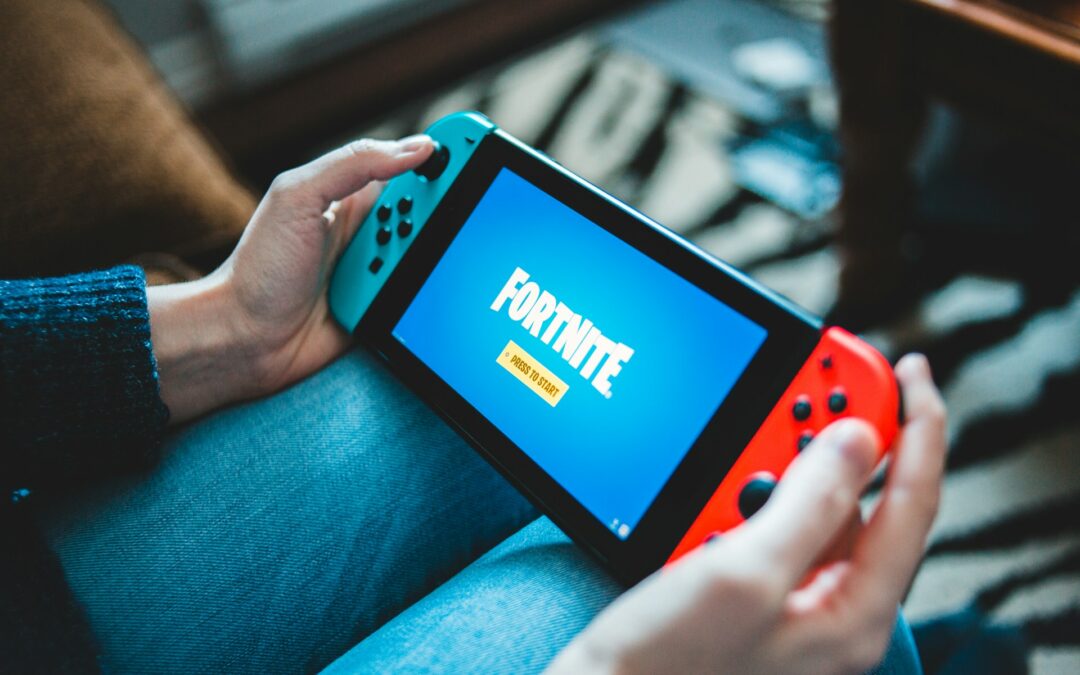
Photo by Erik Mclean on Unsplash