
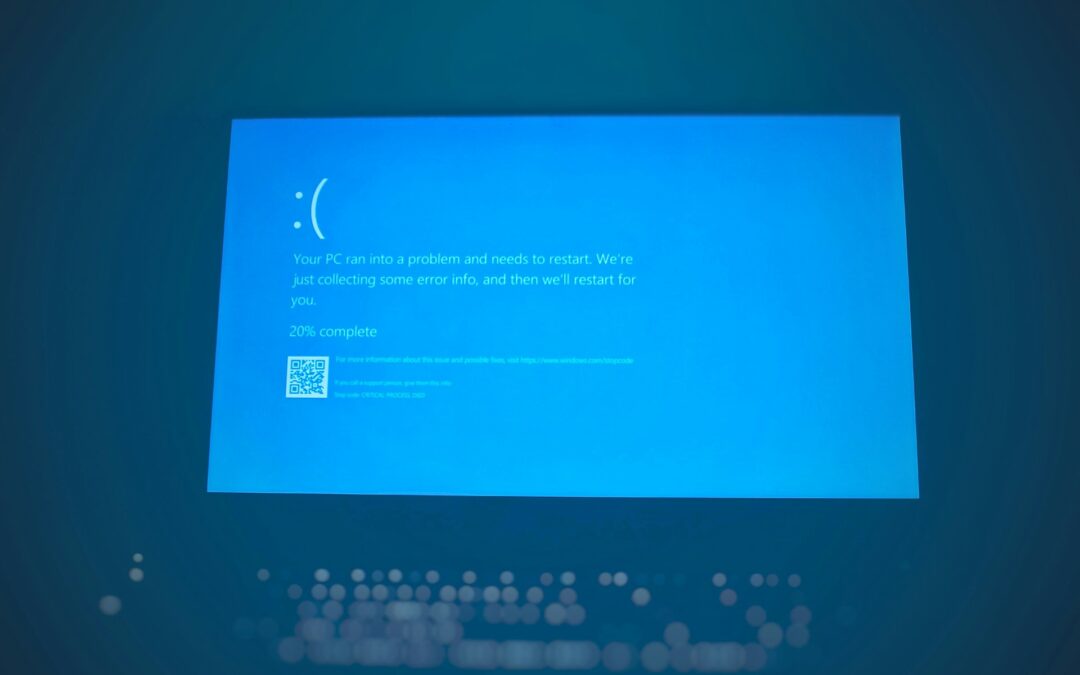
Lag on a computer, like choppy gameplay, sluggish apps, or videos that buffer too slowly, can ruin what should be a smooth experience. It usually happens because the machine can’t handle what you’re asking it to do, either from weak parts, old components, or programs running poorly behind the scenes. To fix lag properly, you’ve got to pinpoint what’s dragging it down, decide what parts need a boost, then weigh what changes make sense. One of the easiest fixes that actually works? Adding more RAM; often, not having enough memory is what’s clogging things up. This piece breaks down what really affects how to fix lag on PC, zeroing in on boosting RAM, covering how to upgrade RAM on PC, including you can upgrade RAM on a laptop and how to upgrade RAM on a desktop. We’ll look at price tags, whether parts match up, speed improvements, and possible roadblocks so you can weigh options clearly.
Understanding the Key Factors Behind PC Lag
First off, figure out what’s dragging your system down before you start fixing things. Typical troublemakers? Think:
- Not enough RAM means today’s apps and games struggle to run smoothly. These programs need way more memory compared to older ones. Just 8 GB makes it tough to handle multiple tasks at once or play high-end games, so the computer ends up using slower disk space, which leads to delays you can actually feel.
- CPU/GPU Bottlenecks: if your processor is outdated, it might lag during live rendering or heavy tasks; meanwhile, an older graphics chip can choke on intense workloads.
- Storage speed? HDDs lag way behind SSDs, causing slow loading plus choppy performance when grabbing data.
- Hidden programs might hog memory or slow things down, think sneaky malware, heavy-duty software, or factory-loaded junk running behind the scenes.
- Too much heat makes the system slow down on its own, cutting speed to keep parts safe.
- Old drivers or software that doesn’t match your OS can cause glitches, while poorly built programs may slow things down or crash unexpectedly.
Out of all options, boosting RAM usually costs less and helps most when your PC lags, particularly when Task Manager reveals memory use stuck over 80%.
Why RAM Matters and When Upgrading Actually Helps
RAM’s like your computer’s quick-thinking space. Having extra lets you juggle tasks easier, get games up faster, or skip those annoying hiccups. Bumping from 8 GB to 16 GB or jumping to 32 GB from 16 GB can make things feel snappier, though it only really matters if the memory was holding everything back.
Signs You Need More RAM
- Memory usage consistently above 80 – 90% in Task Manager or Resource Monitor
- Frequent alerts about limited RAM
- Stuttering despite a capable CPU and GPU
- Slow speed when handling heavy memory jobs like keeping over 20 Chrome tabs open, editing videos, or running virtual machines
When RAM Upgrades Won’t Fix Lag
- CPU or GPU hits max during slowdowns
- You’re still using an HDD (upgrade to SSD first)
- Thermal throttling is active (check temperatures with HW Monitor)
How to Fix Lag on PC’s RAM: Desktop or Laptop Differences
How to Upgrade RAM on a Desktop
Desktops let you upgrade fast, plus they adapt as tech changes.
Step-by-Step Guide
- Check Compatibility Check your RAM details with Crucial System Scanner or CPU-Z, find out if it’s DDR4 or DDR5, see the speed like 3200 MHz, figure out how much it can hold total, also how many slots are there, usually between 2 and 4. Note down how things are set for best matching later.
- Purchase Compatible RAM that fits the current speed plus timing settings so dual-channel works right. Pick two identical sticks like 2×8 GB to get the best speed.
- Install the RAM, shut down, disconnect the cord, then lift the cover. Touch something metal that’s grounded this stops static from messing things up. Pop open the slot latches, yank out any old sticks when swapping stuff. Slide the new RAM in at an angle close to 30 degrees, then push down hard till the locks click shut.
- Verify Installation: Get into BIOS, hit Del or F2 while starting up to check if RAM’s showing up and running at the right speed. Look at Task Manager > Performance > Memory on Windows.
Can You Upgrade RAM on a Laptop?
Yeah, but it’s got some real drawbacks.
- Soldered RAM sticks to the motherboard for good, typical inside ultra portables like MacBook Airs or Pros, Dell XPS 13s, even Surface devices from Microsoft. It can’t be swapped out later since it’s fixed right onto the main board.
- Finding upgradeable models? They pop up in gaming rigs like ASUS ROG or MSI, show up in work-focused gear such as Lenovo ThinkPad T/P series, and sometimes hide inside older gadgets with just one or two SO-DIMM slots.
How to Check Upgradeability
- Head over to the maker’s site → type in your device number → check what’s listed under “Memory.”
- Try Crucial’s Upgrade Tool—or check out iFixit’s teardown guides instead.
- Look at it yourself (you’ll need to take off the bottom cover, but make sure the warranty still applies before doing it).
Upgrade Process (If Possible)
- Fits compact SO-DIMMs instead of bulky desktop ones.
- Needs careful handling because the space is small, yet the clips break easily.
- Max storage usually caps out at 16-32 GB.
Strategic Order: How to Fix Lag on PC Step by Step
- Diagnose → Use Task Manager, HW Monitor, User Benchmark
- Free Fixes → Close apps, update drivers, remove malware
- SSD First → If still using an HDD
- RAM Upgrade → If memory usage >80%
- CPU/GPU → Just when test results show limits
Challenges and Pitfalls to Avoid
- Incompatible RAM → using DDR3 with DDR4 means the system won’t start.
- Static Damage → Touch metal first to avoid frying parts.
- Warranty troubles could pop up if you open the laptop coverage might end, so look up the rules first.
- False hopes → extra RAM doesn’t solve choppy gameplay when the graphics card is the bottleneck.
- Too much RAM → 32 GB is excessive if you’re just browsing or watching videos; 16 GB works better for everyday tasks.
Final Recommendations
To effectively fix lag on PC:
- Begin by checking what’s wrong; don’t assume where it slows down.
- Pump up the RAM if it’s running full, particularly with desktops.
- Laptop owners: Check first if the RAM is expandable before buying one.
- Pile on upgrades like SSD or RAM to get game-changing boosts.
- Plan smartly: go DDR5 if starting fresh, otherwise use DDR4 when updating old systems.
Once you see what’s actually holding your system back, then fix just those parts, lag fades away, speed and smoothness come back, all while skipping extra costs.
Photo by Joshua Hoehne on Unsplash
Trackbacks/Pingbacks