
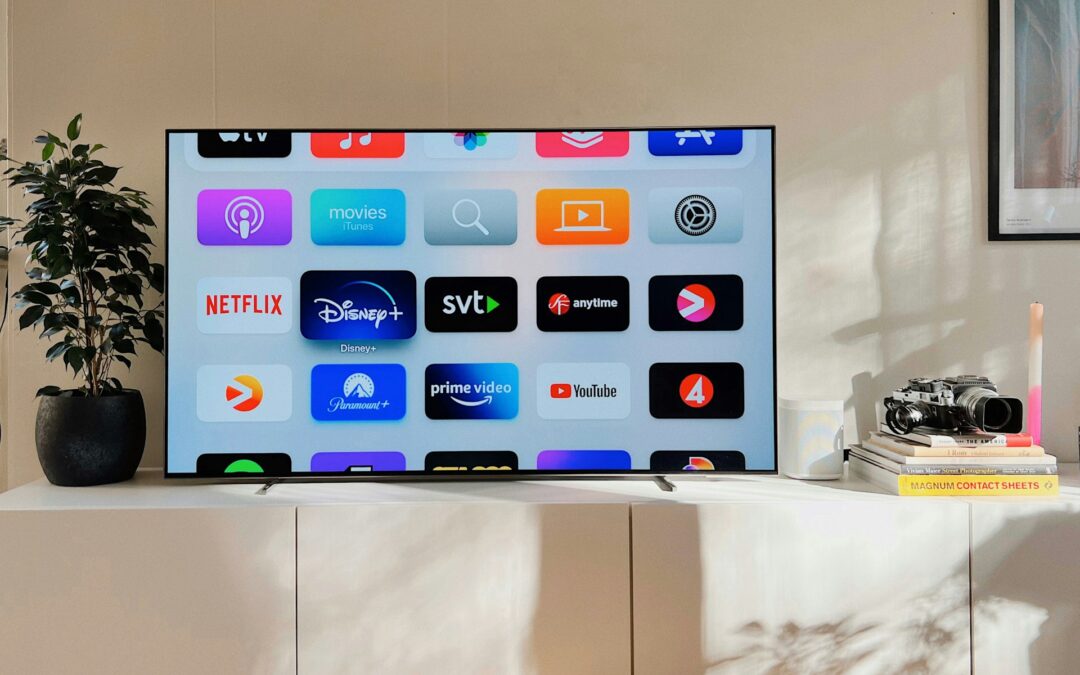
Managing apps on your Roku device is essential for optimizing your viewing experience and ensuring you have quick access to your favorite channels. Over time, you may find that certain apps no longer interest you or that you simply need to free up space for new ones. Whether you’re looking to remove unused channels or streamline your home screen, understanding how to delete apps on Roku is a valuable skill. This guide will walk you through the steps needed to effectively manage your Roku channels, giving you the tools to customize your entertainment options.
1. Understanding Roku App Management
What are Roku Channels?
Roku channels are what we call the apps on your Roku device. Think of them like the various streaming services you might subscribe to Netflix, Hulu, Disney+, and so on. Each channel offers a different type of content, so you can binge-watch your favorite shows, catch up on movies, or even discover new documentaries about the peculiarities of sock knitting. (Yes, that’s a thing)
Why You Might Want to Delete an App
There are a few reasons you might want to bid adieu to a channel. Maybe you’ve finished watching that show (you know, the one that consumed your life for three weeks), or perhaps you’ve realized that you don’t need five different channels for cat videos. Deleting apps can help declutter your home screen, making it easier to find the shows you actually care about, because who has time to scroll through all those icons, right?
2. Accessing the Roku Home Screen
Using the Roku Remote
To access the Roku Home Screen, grab that trusty remote. Press the ‘Home’ button, which looks like a little house. It’s almost as if Roku is reminding you to come back to your own cozy home after a long day. After pressing the button, you’ll see all your installed channels laid out before you, like a buffet of binge-watching options.
Alternative Access Methods
If your remote has mysteriously vanished (it’s like they have a secret society of their own), you can still access the Roku Home Screen using the Roku mobile app. Simply download the app, connect to the same Wi-Fi as your Roku device, and tap the ‘Remote’ feature. Voilà. You’re in business, and you can channel-surf without the remote.
3. Navigating to the Channel Store
Finding the Channel Store on Your Device
To find the Channel Store, head back to that Home Screen we just talked about (you know, the one you can access via the remote or your phone). Scroll down until you see the ‘Streaming Channels’ option. Click on it, and voilà you’ve arrived at the magical land of endless channels, where it’s very easy to lose track of time.
Exploring Installed Channels
Once you’re in the Channel Store, you can browse through categories or search for specific channels you want to add. But hold on, No need to add more channels just yet. This is also where you can check out what’s already installed on your Roku. It’s like going through your closet and rediscovering that shirt you forgot you had except in this case, it’s a bunch of apps that you may or may not still use.
4. Identifying Installed Apps
Viewing All Installed Channels
To view all the channels currently installed on your Roku, simply return to the Home Screen and scroll through the channel list. They’ll be sitting there like friendly little icons, waiting for you to engage. This is your chance to assess whether you really need another streaming app dedicated to reality shows about competitive baking just like when you’re deleting apps from your iPhone to free up space and keep things organized.
Sorting and Organizing Your Channels
Feeling overwhelmed by the chaos of your channels? You can organize them with ease. Highlight a channel, press the * button on your remote, and choose ‘Move channel’ from the menu that appears. Rearrange things how you like perhaps putting your favorite channels front and center, or creating a “meh” section for the ones you only watch when there’s absolutely nothing else on TV. The choice is yours.
5. How to Delete Apps on Roku
How to Delete Apps on Roku: A Step-by-Step Deletion Process
Deleting apps on your Roku is as easy as pie assuming pie is filled with straightforward tech steps. Here’s how you can do it:
- Start by navigating to the Home screen on your Roku device.
- Using your remote, scroll to the channel (aka app) you want to delete.
- Press the asterisk (*) button on your remote to open the options menu.
- Select “Remove channel” and confirm your choice. Voilà That app is history.
Using the Roku Mobile App for Deletion
Want to feel fancy? You can delete apps directly from the Roku mobile app. Here’s your digital magic trick:
- Open the Roku app on your smartphone or tablet.
- Ensure your device is connected to the same Wi-Fi network as your Roku.
- Go to the “My Channels” section to find the app you want to remove.
- Tap and hold the channel icon until a menu appears, then select “Remove Channel.”
- Boom. It’s gone like your hopes of getting a clean house without cleaning.
6. Confirming App Deletion
Checking the Home Screen for Removed Channels
Now that you’ve deleted the app, let’s make sure it’s really gone. Head over to your Home screen and scroll through your channels. If it’s no longer staring back at you, congratulations. You’ve succeeded in your quest to reclaim valuable screen real estate. If it’s still there, maybe you didn’t follow the steps correctly. No judgment; it happens to the best of us.
Reinstalling Deleted Apps if Needed
Oops, Did you accidentally delete that one app with all the fun shows? Don’t fret. Reinstalling is just a few clicks away. Go to the Roku Channel Store, find the app you miss dearly, and hit “Add channel.” It’s like a bad breakup where you realize you still want to be friends just with better TV options.
7. Tips for Managing Storage on Roku
Understanding Storage Limitations
Roku devices come with a limited amount of storage for apps, so it’s kind of like living in a studio apartment: cozy, but you have to be mindful of what you keep. Generally, you’ll be okay with most devices, but older models may have stricter limits. Keeping tabs on storage can save you from awkward “out of space” moments when you’re trying to download that hot new show.
Best Practices for Channel Management
To keep your Roku experience smooth and breezy, regularly review your channels. Remove the apps you haven’t used in ages maybe that fitness app you tried once but ended up binge-watching instead? You can also organize your channels by moving the ones you use most often to the front. Before you know it, you’ll be the Marie Kondo of Roku.
8. Troubleshooting Common Issues
Problems with Deleting Channels
If you run into problems when trying to delete channels, don’t throw your remote in frustration just yet. Ensure that your Roku software is up to date because sometimes tech just wants a little TLC. If the app refuses to budge, try restarting your Roku device. It’s tried and true: a quick power cycle can work wonders just like when you need a snack break after deleting those apps.
Roku Device Not Responding
If your Roku device decides to take an unexpected vacation and doesn’t respond at all, it’s time to check the basics. Make sure it’s plugged in, try turning it off and on again, and of course, check your remote batteries because nothing is worse than a dead remote during a binge session. If all else fails, you might need to reset your Roku to factory settings but let’s hope it doesn’t come to that.
In conclusion, deleting apps on your Roku device is a straight forward process that can enhance your viewing experience and help you stay organized. By following the steps outlined in this guide, you can easily manage your channels and ensure that your home screen reflects your current preferences. Remember, you can always reinstall any app you decide to remove, so feel free to experiment with your channel lineup as your interests change. Happy streaming.
FAQ
1. Can I delete pre-installed Roku apps?
No, certain pre-installed apps on Roku cannot be deleted, but you can move them to a different location on your home screen to minimize clutter.
2. What happens if I remove a paid app from Roku?
If you delete a paid app, you can reinstall it later without repurchasing, as long as you use the same Roku account associated with the purchase.
3. How to Delete Apps on Roku?
Go to the Roku home screen, highlight the app you want to remove, press the ✱ (star) button on your remote, select Remove channel, then confirm.
4. Is there a limit to the number of apps I can install on my Roku?
Yes, Roku devices have a storage limit for channels. If you reach this limit, you’ll need to delete some apps before adding new ones.
5. How do I reinstall a deleted app on Roku?
To reinstall a deleted app, simply go to the Roku Channel Store, search for the app, and select “Add Channel” to download it again.
Photo by Oscar Nord on Unsplash